
Modern fast-food stores prioritize speed and accuracy for daily service. Manual counter lines often build up quickly during rush hours. They also create small order errors from verbal miscommunication.
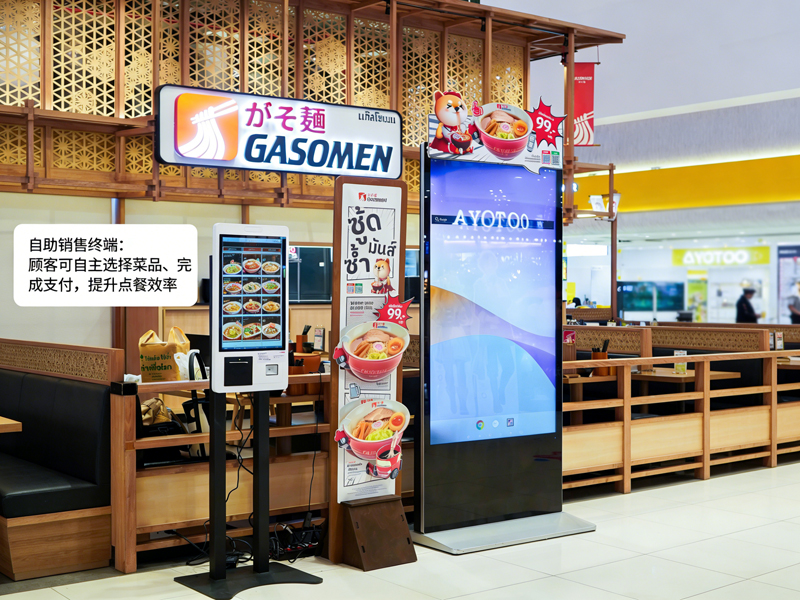
For this reason, Self-Ordering Machines become standard in-store equipment. These touchscreen terminals let guests place orders independently. In addition, they cut waiting time and standardize every order detail. This practical guide shows new users the full operation process, useful skills and common fixes for Self-Ordering Machines.
Pre-Operation Checks for Self-Ordering Machines
A few quick checks help you operate the machine smoothly and avoid minor errors.
1. Wake up the standby screen
First, tap the dark screen gently to activate the device. The machine exits standby mode and loads the official ordering homepage right away.
2. Confirm basic store settings
Next, check the order type option on the top bar. Switch between dine-in or takeaway based on your actual needs. This step prevents order classification mistakes.
3. Prepare your payment method
Get your mobile payment or card ready in advance. Fast payment preparation shortens your whole operation time greatly.
Step-by-Step Guide to Use Self-Ordering Machines
Follow these clear steps to finish a complete order on Self-Ordering Machines.
1. Browse menus and select food items
Browse categorized food, drink and combo lists on the screen. Tap each item to add it to your virtual cart. The system updates your order list in real time.
2. Customize individual meal details
Most meals support personalized adjustments. You can remove ingredients, change portions or add side items. Moreover, all price changes display instantly on the interface.
3. Apply valid promotions and combos
Check ongoing store offers on the promotion page. Select eligible combos or coupons to deduct your total cost. The system calculates accurate final prices automatically.
4. Review the full order list carefully
Double-check all items, custom settings and total fees. Remove wrong selections or add missing items before you proceed to pay. This step avoids post-payment adjustments.
5. Select payment mode and complete transactions
Choose your preferred payment channel from the pop-up list. Follow screen prompts to finish scanning or card swiping. The machine confirms successful payment within seconds.
6. Collect receipts and wait for pickup
Finally, take the printed order receipt with your unique order number. Keep the receipt safe and wait for meal alerts at the store pickup counter.
Practical Tips for Better Machine Operation
These simple tips help you use Self-Ordering Machines faster and more accurately.
1. Batch select items to save time
Choose all meals for your group in one operation. You avoid repeated screen tapping and streamline the whole process.
2. Finish all edits before payment
The system locks order details after successful payment. Thus, you must complete all customization and edits in advance.
3. Follow on-screen prompts for errors
If the screen pops up reminders, read the hints first. Fix small issues such as empty selections or expired coupons immediately.
4. Use multi-language modes for easy understanding
The machine supports multiple language options. Switch your familiar language to avoid misunderstanding menu content.
Common Minor Issues & Quick Fixes
You can solve most small machine problems without staff help.
1. Slow screen response
Tap the button gently and wait 1 to 2 seconds. Heavy or repeated taps will not speed up the system response.
2. Failed payment submission
Check your network status and account balance first. Then, retry the payment process or switch to another payment method.
3. Missing promotion displays
Refresh the homepage to sync the latest store activities. Outdated content often disappears after a quick refresh.
FAQs About KFC Self-Ordering Machines
Q1: Are Self-Ordering Machines hard for first-time users?
A1: No. The interface uses simple icons and step hints. Any user can finish ordering in one minute with no training.
Q2: Can I modify my order after paying on the machine?
A2: Rarely. The system locks orders after payment. You need to confirm all details before submitting your transaction.
Q3: Do Self-Ordering Machines support all store discounts?
A3: Yes. The terminal syncs real-time store promotions, combos and coupons. It applies valid discounts automatically.
Q4: What should I do if the machine freezes suddenly?
A4: Stop your current operation first. Notify on-site staff to restart and debug the device for normal use.
Q5: Do I have to use Self-Ordering Machines to place orders?
A5: No. Self-service ordering is optional. You can still choose traditional counter ordering if you prefer.
Conclusion
To sum up, Self-Ordering Machines at KFC deliver a fast, accurate and user-friendly ordering experience. Every operation step features clear guidance, flexible customization and transparent billing. These smart terminals reduce queuing pressure and order errors for both customers and store operators. They have become a standard, efficient service tool for modern fast-food scenarios.
If you want to equip your fast-food or catering store with stable, easy-to-operate Self-Ordering Machines, please fill out the inquiry form on our official website. Share your store scale, layout space and functional demands, and our team will provide you with professional customized terminal solutions.