
อาหารพิเศษประจำวันคือส่วนสำคัญของผู้ที่มารับประทานอาหาร. พวกเขาดึงดูดลูกค้าประจำ, เน้นส่วนผสมตามฤดูกาล, และปล่อยให้เชฟแสดงความคิดสร้างสรรค์—ทั้งหมดนี้เพิ่มอัตรากำไรไปด้วย. แต่การจัดการเมนูพิเศษเหล่านี้ด้วยเมนูกระดาษแบบดั้งเดิมกลับกลายเป็นเรื่องยุ่งยาก: คุณพิมพ์ส่วนแทรกใหม่ทุกวัน, เศษกระดาษ, และเสี่ยงที่ลูกค้าจะพลาดอาหารที่มีเวลาจำกัด. หน้าจอสัมผัส Diner Daily Specials เปลี่ยนแปลงเกมนี้โดยสิ้นเชิง, ให้คุณอัปเดตข้อเสนอพิเศษภายในไม่กี่นาทีโดยไม่มีขยะ.
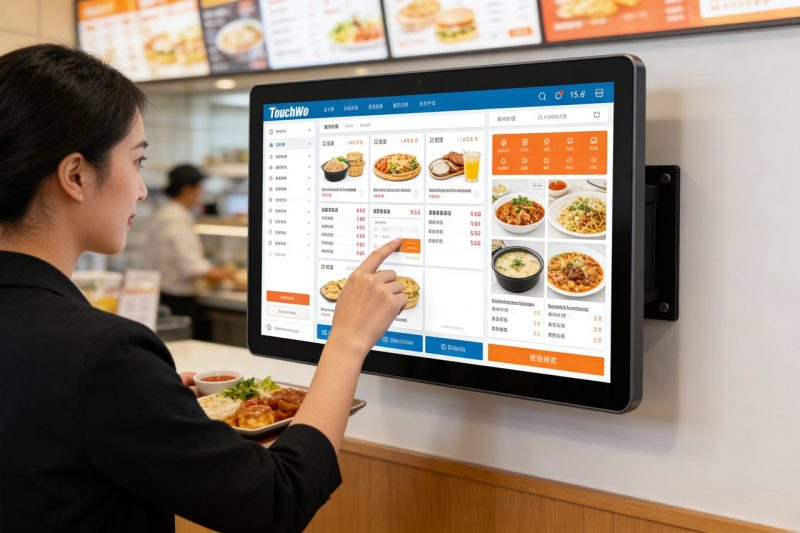
เจ้าของร้านอาหารจำนวนมากยังประสบปัญหากับกระบวนการอัปเดต, กลัวว่าจะต้องใช้ทักษะทางเทคนิคหรือใช้เวลานานเกินไปในช่วงกะที่ยุ่ง. ความจริงก็คือ, การอัปเดตรายการพิเศษประจำวันบนเมนูหน้าจอสัมผัสทำได้อย่างรวดเร็ว, ใช้งานง่าย, และออกแบบมาสำหรับขั้นตอนการทำงานที่ยุ่งวุ่นวายของผู้มารับประทานอาหาร. คู่มือนี้จะแจกแจงวิธีการอัพเดตแบบทีละขั้นตอน, เคล็ดลับระดับมืออาชีพเพื่อทำให้ข้อเสนอพิเศษโดดเด่น, การแก้ไขปัญหาทั่วไป, และคำถามที่พบบ่อยเพื่อช่วยให้คุณเชี่ยวชาญเมนูหน้าจอสัมผัส. ไม่ว่าคุณจะเปิดร้านอาหารบรรยากาศสบายๆ ในละแวกใกล้เคียงหรือร้านที่เปิดตลอด 24 ชั่วโมงอันพลุกพล่าน, ข้อมูลเชิงลึกเหล่านี้จะช่วยให้คุณรักษาเมนูของคุณให้สดใหม่อยู่เสมอ, ลูกค้ามีส่วนร่วม, และมียอดขายสูง.
คำแนะนำทีละขั้นตอนในการอัปเดตรายการพิเศษรายวันบนเมนูหน้าจอสัมผัสของนักชิม
การอัปเดตรายการพิเศษรายวันไม่จำเป็นต้องรบกวนกะงานของคุณ. ทำตามง่ายๆเหล่านี้, ขั้นตอนตามลำดับที่จะเพิ่ม, แก้ไข, หรือลบรายการพิเศษออกด้านล่าง 5 นาที—ไม่จำเป็นต้องมีความเชี่ยวชาญด้านเทคนิค.
1. เข้าถึงโหมดผู้ดูแลระบบของเมนูหน้าจอสัมผัส
อันดับแรก, คุณต้องเข้าสู่ระบบแบ็กเอนด์ของเมนูเพื่อทำการเปลี่ยนแปลง.
แตะไอคอน "ผู้ดูแลระบบ" บนหน้าแรกของหน้าจอสัมผัส โดยปกติจะอยู่ที่มุมหรือซ่อนอยู่หลังการแตะสองครั้งอย่างรวดเร็ว.
ป้อนรหัสผ่านเฉพาะ 4-6 หลักของคุณ (อย่าแชร์สิ่งนี้กับพนักงานที่ไม่ต้องการเข้าถึงเมนู).
เลือกแท็บ "การจัดการเมนู" ซึ่งเป็นที่ที่คุณจะพบตัวเลือกทั้งหมดสำหรับแก้ไขรายการและรายการพิเศษ.
สำหรับเคล็ดลับ: เลือกรหัสผ่านที่จำง่ายแต่เดายาก (หลีกเลี่ยง 1234 หรือหมายเลขโทรศัพท์ของผู้ที่มารับประทานอาหารของคุณ).
2. เพิ่มรายการพิเศษประจำวันใหม่ (พร้อมรูปถ่าย & รายละเอียด)
รายการพิเศษสดใหม่คู่ควรกับการจัดแสดงที่สะดุดตา รวมถึงรูปภาพและคำอธิบายที่ชัดเจนเพื่อดึงดูดลูกค้า.
คลิก "เพิ่มรายการใหม่" และเลือกหมวดหมู่ "พิเศษรายวัน" เพื่อแยกออกจากรายการเมนูปกติ.
พิมพ์ชื่อพิเศษ (เช่น, “ชีสเบอร์เกอร์สโมคกี้เบคอนกับหัวหอมโฮมเมด”) และสั้น, คำอธิบายที่ชวนน้ำลายสอ.
อัปโหลดรูปภาพอาหารจานนี้คุณภาพสูงที่มีสีสันสดใส, แสงธรรมชาติทำให้อาหารดูน่าดึงดูดใจลูกค้ามากขึ้น.
ตั้งราคา, ขนาดส่วน, และฉลากอาหารใดๆ (เช่น, “มีขนมปังปลอดกลูเตนให้บริการ”,” “มีถั่ว”) เพื่อหลีกเลี่ยงความสับสน.
บันทึกรายการ ระบบส่วนใหญ่จะซิงค์การอัปเดตกับหน้าจอสัมผัสทั้งหมดในร้านอาหารของคุณทันที.
3. แก้ไขหรือลบข้อเสนอพิเศษที่มีอยู่ (สำหรับการเปลี่ยนแปลงในนาทีสุดท้าย)
ส่วนผสมที่ขาดแคลนหรืออาหารยอดนิยมขายหมด หมายความว่าคุณต้องปรับเปลี่ยนเมนูพิเศษอย่างรวดเร็ว.
ไปที่แท็บ “รายการพิเศษรายวัน” และเลือกรายการที่คุณต้องการแก้ไขหรือลบ.
หากต้องการแก้ไข: อัพเดทชื่อครับ, ราคา, หรือคำอธิบาย (เช่น, เปลี่ยน “ไก่ย่าง” เป็น “ไก่กรอบ” หากของหมด).
เพื่อถอดออก: คลิกปุ่ม "ลบ" หรือ "ทำเครื่องหมายว่าขายหมดแล้ว" แท็ก "ขายหมดแล้ว" ดีกว่าการลบ, เนื่องจากสร้างความเร่งด่วนให้กับลูกค้าในอนาคต.
ยืนยันการเปลี่ยนแปลง เมนูหน้าจอสัมผัสของคุณจะอัปเดตทันที, ดังนั้นจึงไม่มีลูกค้าคนใดเห็นข้อเสนอพิเศษที่ล้าสมัย.
4. ไฮไลท์ข้อเสนอพิเศษเพื่อเพิ่มการมองเห็น (สำหรับทิป)
ทำให้ความพิเศษประจำวันของคุณไม่ควรพลาดด้วยเทคนิคการปรับแต่งด่วนเหล่านี้.
ใช้เครื่องมือ "รายการคุณลักษณะ" เพื่อปักหมุดรายการพิเศษไว้ที่ด้านบนของหน้าแรกของเมนู นี่คือสิ่งแรกที่ลูกค้าเห็น.
เพิ่มตัวหนา, แท็กที่มีสีสัน (เช่น, “เชฟคัดสรร,“เวลาจำกัด,“ส่วนลด $5”) เพื่อดึงดูดความสนใจไปยังอาหารจานหลัก.
ปรับขนาดตัวอักษรหรือสีพื้นหลังสำหรับรายการพิเศษ คอนทราสต์ทำให้โดดเด่นจากตัวเลือกเมนูทั่วไป.
หมุนเวียนข้อเสนอพิเศษที่โดดเด่นตลอดทั้งวัน (เช่น, อาหารเช้าพิเศษในตอนเช้า, อาหารค่ำพิเศษในเวลากลางคืน) เพื่อให้ตรงกับปริมาณการเข้าชมของผู้ที่มารับประทานอาหาร.
5. ทดสอบการอัปเดตบนหน้าจอสัมผัสทั้งหมด
ตรวจสอบให้แน่ใจว่าทุกหน้าจอในร้านอาหารของคุณแสดงข้อเสนอพิเศษใหม่ๆ เพื่อหลีกเลี่ยงไม่ให้ลูกค้าหงุดหงิด.
เดินไปรอบๆ ร้านอาหารของคุณและแตะแต่ละหน้าจอสัมผัสเพื่อตรวจสอบว่ารายการพิเศษใหม่ปรากฏขึ้นอย่างถูกต้องหรือไม่.
ตรวจสอบว่ารูปภาพโหลดอย่างถูกต้อง, ราคามีความถูกต้อง, และฉลากอาหารแสดงไว้อย่างชัดเจน.
ขอให้พนักงานแกล้งทำเป็นลูกค้า—ทดสอบว่าพวกเขาสามารถหาเมนูพิเศษประจำวันได้อย่างง่ายดายหรือไม่.
แก้ไขข้อผิดพลาดทันที (เช่น, รูปภาพหายไป) โดยการอัพโหลดเนื้อหาใหม่หรือรีเฟรชระบบ.
เคล็ดลับมือโปรในการทำให้เมนูพิเศษประจำวันปรากฏบนเมนูหน้าจอสัมผัสของคุณ
การอัปเดตข้อเสนอพิเศษเป็นเรื่องหนึ่ง - การขายเป็นอีกเรื่องหนึ่ง. ใช้เคล็ดลับเหล่านี้เพื่อเปลี่ยนเบราว์เซอร์ทั่วไปให้กลายเป็นผู้ซื้อ.
1. ใช้ส่วนผสมตามฤดูกาลในเมนูพิเศษ (และเน้นพวกเขา)
ลูกค้าชื่นชอบอาหารตามฤดูกาล โดยเน้นสิ่งนี้บนเมนูหน้าจอสัมผัสเพื่อเพิ่มความน่าดึงดูด.
เพิ่มแท็ก เช่น “Fall Harvest”,“ซัมเมอร์เฟรช,” หรือ “วันหยุดพิเศษ” เพื่อผูกเมนูอาหารเข้ากับช่วงเวลาของปี.
รวมข้อความสั้นๆ เกี่ยวกับการจัดหาส่วนผสม (เช่น, “มะเขือเทศปลูกในท้องถิ่นจาก Smith’s Farm”) เพื่อสร้างความไว้วางใจ.
หมุนเวียนรายการพิเศษตามฤดูกาลทุกสัปดาห์เพื่อให้เมนูรู้สึกสดชื่นและกระตุ้นให้กลับมาใช้บริการซ้ำ.
2. จับคู่เมนูพิเศษกับเครื่องดื่มหรือเครื่องเคียง (เพิ่มมูลค่าการสั่งซื้อเฉลี่ย)
เพิ่มยอดขายด้วยการสร้างคอมโบพิเศษที่กระตุ้นให้ลูกค้าใช้จ่ายมากขึ้น.
เพิ่มตัวเลือก "คอมโบพิเศษ" (เช่น, “มีทโลฟพิเศษ + น้ำมะนาวโฮมเมดราคา $12.99”).
แนะนำด้านเสริม (เช่น, “ลองสิ่งนี้กับมันฝรั่งบดกระเทียมของเรา – เพิ่ม $2”) ด้านล่างรายการพิเศษแต่ละรายการ.
ไฮไลท์การจับคู่เครื่องดื่ม (เช่น, “สมบูรณ์แบบกับเบียร์เย็น ๆ”) เพื่อขายเครื่องดื่มควบคู่กับมื้ออาหาร.
3. อัปเดตข้อเสนอพิเศษแบบเรียลไทม์ (สำหรับการขายแบบแฟลชหรือการขายหมด)
ใช้ความเร็วของเมนูหน้าจอสัมผัสให้เป็นประโยชน์ด้วยโปรโมชั่นนาทีสุดท้าย.
หากจานหนึ่งขายเร็ว, เพิ่ม “เท่านั้น 5 ซ้าย!” เพื่อสร้างความเร่งด่วนและกระตุ้นคำสั่งซื้อมากขึ้น.
ดำเนินการขายแฟลชในช่วงเวลาที่ช้า (เช่น, “ส่วนลด 10% สำหรับเบอร์เกอร์ทั้งหมด 14–16 น.”) โดยอัพเดทรายการพิเศษได้ทันที.
ทำเครื่องหมายสินค้าว่า "ขายหมดแล้ว" ทันทีที่สินค้าหมด เพื่อป้องกันความผิดหวังของลูกค้าและความสับสนของพนักงาน.
4. รวบรวมคำติชมของลูกค้า (ปรับแต่งข้อเสนอพิเศษเมื่อเวลาผ่านไป)
ใช้เมนูหน้าจอสัมผัสเพื่อเรียนรู้ว่าลูกค้าชอบอะไรและไม่ชอบอะไร.
เพิ่มปุ่ม "ให้คะแนนเมนูพิเศษนี้" ใต้อาหารแต่ละจานในแต่ละวัน โดยให้ลูกค้าเขียนรีวิว 1-5 ดาวได้.
อ่านคำติชมเมื่อสิ้นสุดกะแต่ละครั้งเพื่อปรับแต่งข้อเสนอพิเศษในอนาคต (เช่น, หากลูกค้าต้องการพริกที่เผ็ดกว่านี้, ปรับสูตร).
ไฮไลท์รายการพิเศษยอดนิยม (เช่น, “ลูกค้าชื่นชอบ!-) เพื่อส่งเสริมให้มีการสั่งซื้อเพิ่มมากขึ้น.
การแก้ไขปัญหาการอัพเดททั่วไป
แม้แต่เมนูหน้าจอสัมผัสที่ดีที่สุดก็ยังมีข้อบกพร่อง ต่อไปนี้เป็นวิธีแก้ไขอย่างรวดเร็ว.
1. ข้อเสนอพิเศษไม่อัปเดตในทุกหน้าจอ
ซึ่งมักเกิดขึ้นเมื่อหน้าจอขาดการเชื่อมต่ออินเทอร์เน็ตหรือการซิงค์ล้มเหลว.
ตรวจสอบว่าหน้าจอสัมผัสทั้งหมดเชื่อมต่อกับ Wi-Fi ของผู้ที่มารับประทานอาหารของคุณหรือไม่—เชื่อมต่ออุปกรณ์ออฟไลน์ใดๆ อีกครั้ง.
รีสตาร์ทเซิร์ฟเวอร์เมนูหลัก (มักจะเป็นกล่องเล็กๆ ด้านหลังเคาน์เตอร์) เพื่อบังคับการซิงค์ทั้งระบบ.
ตรวจสอบให้แน่ใจว่าการเชื่อมต่ออินเทอร์เน็ตของคุณเสถียร Wi-Fi ที่ช้าอาจทำให้การอัปเดตล่าช้าไปเป็นนาที.
2. รูปภาพจะไม่โหลดสำหรับข้อเสนอพิเศษใหม่
ภาพถ่ายที่พร่ามัวหรือขาดหายไปจะทำลายความน่าดึงดูดของสิ่งพิเศษของคุณ โปรดแก้ไขปัญหานี้อย่างรวดเร็ว.
ตรวจสอบให้แน่ใจว่าไฟล์รูปภาพไม่ใหญ่เกินไป (เก็บไว้ไม่เกิน 2MB เพื่อการโหลดที่รวดเร็ว).
ใช้รูปแบบ JPG หรือ PNG ซึ่งเข้ากันได้กับระบบเมนูหน้าจอสัมผัสส่วนใหญ่.
อัปโหลดรูปภาพอีกครั้งหากภาพเบลอ - ใช้ภาพความละเอียดสูงที่ถ่ายในแสงธรรมชาติเพื่อให้ได้ผลลัพธ์ที่ดีที่สุด.
3. ไม่สามารถเข้าถึงโหมดผู้ดูแลระบบ (ลืมรหัสผ่าน)
ถูกล็อคออกจากระบบ? อย่าตกใจ มีวิธีแก้ไขง่ายๆ.
ค้นหาคู่มือผู้ใช้ของระบบเมนูหรือติดต่อทีมสนับสนุนของผู้ผลิต.
ใช้คุณสมบัติ "ลืมรหัสผ่าน" (โดยปกติจะเป็นปุ่มรีเซ็ตบนเซิร์ฟเวอร์หรือลิงก์บนหน้าจอเข้าสู่ระบบ).
ตั้งรหัสผ่านใหม่และจดไว้ในที่ปลอดภัย (เช่น, ลิ้นชักที่ล็อคอยู่ด้านหลังเคาน์เตอร์).
คำถามที่พบบ่อยเกี่ยวกับหน้าจอสัมผัส Diner Daily Specials
ไตรมาสที่ 1: ฉันควรอัปเดตรายการพิเศษรายวันบนเมนูหน้าจอสัมผัสบ่อยแค่ไหน?
A1: อัพเดทรายการพิเศษทุกวันเพื่อให้เมนูสดใหม่อยู่เสมอ, แต่คุณสามารถทำการเปลี่ยนแปลงแบบเรียลไทม์สำหรับการขายหมดหรือการขายแฟลชได้. ผู้ที่มารับประทานอาหารจำนวนมากสลับไปมาระหว่างมื้อเช้า, อาหารกลางวัน, และอาหารค่ำสุดพิเศษตลอดทั้งวัน.
ไตรมาสที่ 2: ฉันสามารถกำหนดเวลาพิเศษล่วงหน้าได้หรือไม่?
A2: ใช่! ระบบเมนูหน้าจอสัมผัสที่ทันสมัยที่สุดช่วยให้คุณสามารถกำหนดเวลาพิเศษสำหรับวันหรือเวลาที่ระบุได้. ตัวอย่างเช่น, คุณสามารถตั้งค่าอาหารมื้อสายสุดสัปดาห์ให้ถ่ายทอดสดโดยอัตโนมัติในเช้าวันเสาร์ได้.
ไตรมาสที่ 3: ฉันจำเป็นต้องเชื่อมต่ออินเทอร์เน็ตเพื่ออัปเดตข้อเสนอพิเศษหรือไม่?
A3: ขึ้นอยู่กับระบบของคุณ—หน้าจอสัมผัสบางรุ่นให้คุณอัปเดตในเครื่องได้ (ไม่มี Wi-Fi) และซิงค์ในภายหลัง, ในขณะที่บางประเทศต้องใช้อินเทอร์เน็ตเพื่อการเปลี่ยนแปลงแบบเรียลไทม์. ตรวจสอบคู่มือผู้ใช้ของคุณเพื่อดูรายละเอียด.
ไตรมาสที่ 4: ฉันสามารถเพิ่มข้อเสนอแบบจำกัดเวลาได้หรือไม่ (LTO) ควบคู่ไปกับรายการพิเศษประจำวัน?
A4: อย่างแน่นอน. สร้างหมวดหมู่ "ข้อเสนอในเวลาจำกัด" แยกต่างหากบนเมนูหน้าจอสัมผัสของคุณเพื่อแยกความแตกต่างจากข้อเสนอพิเศษประจำวัน. ใช้แท็กตัวหนาเพื่อเน้นว่า LTO จะอยู่ได้นานแค่ไหน (เช่น, “ใช้ได้เฉพาะสัปดาห์นี้เท่านั้น”).
คำถามที่ 5: ฉันจะฝึกอบรมพนักงานให้อัพเดทรายการพิเศษได้อย่างไร หากฉันไม่ได้อยู่ที่ร้านอาหาร?
A5: สร้างความเรียบง่าย, คำแนะนำทีละขั้นตอนพร้อมภาพหน้าจอสำหรับพนักงาน. ให้สิทธิ์ผู้ดูแลระบบเข้าถึงเฉพาะพนักงานที่เชื่อถือได้เท่านั้น, และทดสอบทักษะด้วยการอัพเดตจำลองก่อนที่จะปล่อยให้พวกเขาจัดการมันเพียงลำพัง.
คำถามที่ 6: การอัปเดตพิเศษจะทำให้เมนูหน้าจอสัมผัสช้าลงในช่วงชั่วโมงเร่งด่วน?
A6: ไม่ การอัปเดตส่วนใหญ่จะดำเนินการทันทีและไม่ส่งผลต่อความเร็วของเมนู. หลีกเลี่ยงการเปลี่ยนแปลงครั้งใหญ่ (เช่น, กำลังอัพโหลด 10+ ภาพถ่าย) ระหว่างกะที่ยุ่งที่สุดของคุณเพื่อให้ระบบทำงานได้อย่างราบรื่น.
คำถามที่ 7: ฉันสามารถติดตามว่าสินค้าพิเศษประจำวันขายบนเมนูหน้าจอสัมผัสของฉันได้ดีเพียงใด?
A7: ใช่! ระบบพรีเมียมประกอบด้วยการวิเคราะห์การขายที่แสดงว่ารายการพิเศษใดมียอดขายสูงสุด. ใช้ข้อมูลนี้เพื่อปรับแต่งเมนูของคุณ โดยเพิ่มอาหารยอดนิยมเป็นสองเท่าและตัดเมนูที่ไม่มีประสิทธิภาพ.
บทสรุป
การอัปเดตข้อเสนอพิเศษรายวันบนหน้าจอสัมผัส Diner Daily Specials ของคุณเป็นเรื่องง่าย, วิธีอันทรงพลังในการทำให้เมนูของคุณมีชีวิตชีวา, เพิ่มยอดขาย, และลดของเสีย. โดยทำตามคำแนะนำทีละขั้นตอน, ใช้เคล็ดลับระดับมือโปรเพื่อเน้นข้อเสนอพิเศษ, และการแก้ไขปัญหาทั่วไป, คุณสามารถเชี่ยวชาญกระบวนการอัปเดตได้ภายในไม่กี่นาที แม้ในช่วงกะร้านอาหารที่ยุ่งที่สุดก็ตาม.
ไม่ต้องเปลืองกระดาษอีกต่อไป, เมนูที่ล้าสมัย, หรือพลาดโอกาสในการขาย. เมนูหน้าจอสัมผัสที่ได้รับการดูแลอย่างดีช่วยให้คุณแสดงอาหารตามฤดูกาลได้, ดำเนินการขายแฟลช, และตอบกลับความคิดเห็นของลูกค้าแบบเรียลไทม์—เปลี่ยนเมนูพิเศษประจำวันของผู้ที่มารับประทานอาหารของคุณให้เป็นรายการโปรดของลูกค้า.
พร้อมที่จะอัปเกรดเมนูอาหารของคุณด้วยหน้าจอสัมผัส Diner Daily Specials ที่ใช้งานง่าย หรือรับความช่วยเหลือเกี่ยวกับการปรับแต่งขั้นสูง? กรอกแบบฟอร์มบนเว็บไซต์ของเราเพื่อแจ้งขนาดผู้ที่มารับประทานอาหารของคุณ, การจราจรรายวัน, และความต้องการเมนู. ผู้เชี่ยวชาญด้านเทคโนโลยีบริการอาหารของเราจะแนะนำรุ่นที่เข้ากันได้ดีที่สุด, ให้คำแนะนำในการปรับแต่ง, และตอบคำถามใด ๆ เพื่อช่วยให้คุณทำให้เมนูพิเศษประจำวันของคุณกลายเป็นดาวเด่นในเมนูของคุณ. ยกระดับเมนูอาหารของคุณไปอีกระดับ เริ่มตั้งแต่วันนี้!