
日替わりスペシャルはダイナーの生命線です. 彼らは常連客を引き寄せる, 季節の食材を際立たせる, シェフが創造性を発揮できるようにしながら、利益率を向上させます. しかし、これらのスペシャルを従来の紙のメニューで管理するのは面倒です: 毎日新しい折り込みチラシを印刷します, 古紙, 顧客が期間限定料理を見逃す危険性がある. ダイナー デイリー スペシャルのタッチ スクリーンがこのゲームを完全に変える, 無駄なく数分でスペシャルを更新できます.
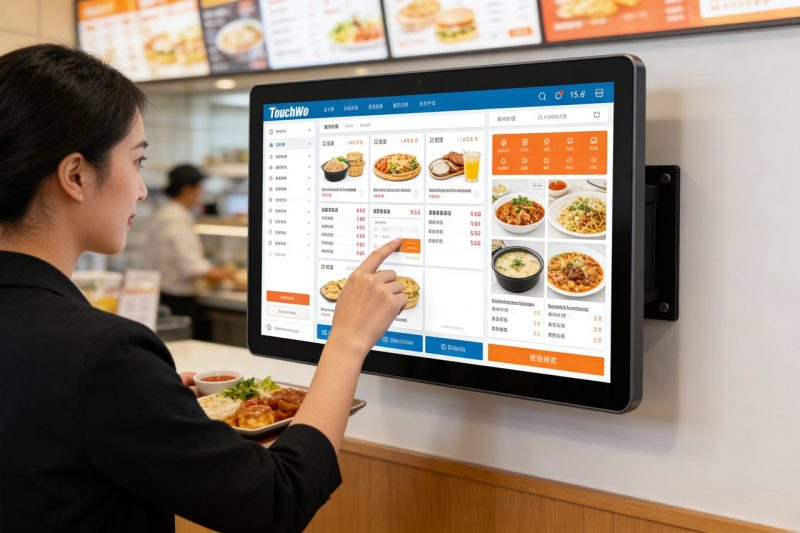
しかし、多くのダイナーオーナーは更新プロセスに苦労しています, 技術的なスキルが必要な場合や、忙しいシフト中に時間がかかりすぎるのではないかと心配している. 真実は, タッチスクリーンメニューの日替わりスペシャルの更新が速い, 直感的な, 忙しいダイナーのワークフロー向けに設計されています. このガイドでは、更新方法を段階的に説明します。, スペシャルを目立たせるためのプロのヒント, 一般的な問題のトラブルシューティング, タッチ スクリーン メニューを使いこなすのに役立つ FAQ と. 居心地の良い近所のダイナーを経営している場合でも、24 時間営業の賑やかなスポットを経営している場合でも, これらの洞察は、メニューを新鮮に保つのに役立ちます, 顧客との関わり, そして売り上げも高い.
ダイナーのタッチスクリーンメニューの日替わりスペシャルを更新するためのステップバイステップガイド
日替わりスペシャルを更新してもシフトを中断する必要はありません. これらの簡単な手順に従ってください, 追加する連続ステップ, 編集, または下のスペシャルを削除します 5 数分 - 技術的な専門知識は必要ありません.
1. タッチスクリーンメニューの管理者モードへのアクセス
初め, 変更するにはメニューのバックエンド システムにログインする必要があります.
タッチ スクリーンのホームページで「管理者」アイコンをタップします。通常は隅にあるか、すばやくダブルタップすると隠れます。.
固有の 4 ~ 6 桁のパスコードを入力してください (メニューにアクセスする必要のないスタッフとは決して共有しないでください).
「メニュー管理」タブを選択します。ここには、品目やスペシャルを編集するためのすべてのオプションがあります。.
ヒントとして: 覚えやすく、推測されにくいパスコードを選択してください (避ける 1234 またはダイナーの電話番号).
2. 新しい日替わりスペシャルを追加 (写真付き & 詳細)
新鮮なスペシャル商品には目を引くディスプレイが必要です。顧客を惹きつける写真や明確な説明を含めます。.
「新しい項目を追加」をクリックし、「日替わりスペシャル」カテゴリーを選択して、通常のメニュー項目とは別にします。.
スペシャルの名前を入力してください (例えば。, 「スモーキーベーコンチーズバーガー 自家製オニオンリング添え」) そして短い, 食欲をそそる説明.
料理の高品質の写真をアップロードします(明るい), 自然光が料理をお客様にとってより魅力的に見せます.
価格を設定する, 部分サイズ, およびあらゆる食事ラベル (例えば。, “グルテンフリーのパンもご用意しております”,「ナッツが含まれています」) 混乱を避けるために.
アイテムを保存します。ほとんどのシステムは、更新内容を食堂内のすべてのタッチ スクリーンに即座に同期します。.
3. 既存のスペシャルを編集または削除する (直前の変更について)
食材の不足や人気の料理が売り切れの場合は、急いで特別メニューを調整する必要があります.
「日替わりスペシャル」タブに移動し、編集または削除するアイテムを選択します.
編集するには: 名前を更新する, 価格, または説明 (例えば。, 在庫が少なくなった場合は「グリルチキン」を「クリスピーチキン」に変更します).
削除するには: [削除] または [売り切れとしてマーク] ボタンをクリックします。削除よりも [売り切れ] タグの方が適しています。, 将来の顧客に緊急性をもたらすため.
変更を確認します - タッチ スクリーン メニューがすぐに更新されます, そのため、顧客は時代遅れの特売品を目にすることはありません.
4. 注目度を高めるためにスペシャルを強調表示する (チップ用)
これらの簡単なカスタマイズのトリックを使用して、毎日のスペシャルを見逃すことのないようにしましょう.
「目玉アイテム」ツールを使用して、スペシャルメニューをメニューのホームページの上部に固定します。これは顧客が最初に目にするものです。.
太字を追加, カラフルなタグ (例えば。, 「シェフのおすすめ」,” “期間限定”,“5ドルオフ”) 重要な料理に注目を集める.
特別な項目のフォント サイズまたは背景色を調整します。コントラストにより、通常のメニュー オプションよりも目立ちます。.
一日を通して注目のスペシャルをローテーションする (例えば。, 朝のスペシャルブレックファスト, 夜のディナースペシャル) ダイナーの混雑に合わせて.
5. すべてのタッチ スクリーンでアップデートをテストする
顧客の不満を避けるために、ダイナーのすべてのスクリーンに新しいスペシャルが表示されていることを確認します。.
ダイナー内を歩き回り、各タッチ スクリーンをタップして、新しいスペシャルが正しく表示されるかどうかを確認します。.
写真が正しく読み込まれることを確認する, 価格は正確です, 食事ラベルは明確に表示されます.
スタッフに顧客のふりをしてもらい、その日の特売品を簡単に見つけられるかテストしてください.
不具合があればすぐに修正する (例えば。, 写真がありません) コンテンツを再アップロードするか、システムを更新することにより、.
タッチ スクリーン メニューに日替わりスペシャルを表示するためのプロのヒント
特売品を更新することと、特売品を販売することは別のことです. これらのヒントを使用して、カジュアルなブラウザを購入者に変えてください。.
1. 季節の食材を特売品に使用する (そしてそれらを強調する)
顧客は季節の料理が大好きです。タッチ スクリーン メニューでそれを強調し、魅力を高めます.
「秋の収穫」のようなタグを追加します,「サマーフレッシュ」,料理を一年の季節に結び付ける「ホリデースペシャル」.
原材料の調達に関する短いメモを含める (例えば。, 「スミス農園産の地元産トマト」) 信頼を築くために.
季節のスペシャルメニューを週ごとに入れ替えて、メニューの新鮮さを保ち、リピート訪問を促進します。.
2. スペシャル料理とドリンクまたはサイドメニューの組み合わせ (平均注文額の増加)
顧客の購買意欲を高めるコンボ特典を作成して売上を伸ばす.
「スペシャルコンボ」オプションを追加 (例えば。, 「ミートローフスペシャル」 + 自家製レモネード 12.99ドル」).
補完的な側面を提案する (例えば。, 「ガーリックマッシュポテトと一緒にお試しください。2ドル追加します。」) 各スペシャルの下に.
ドリンクのペアリングを強調する (例えば。, “冷えたクラフトビールにぴったり”) 食事と一緒に飲み物を高額販売する.
3. リアルタイムでスペシャルを更新 (フラッシュセールまたは売り切れの場合)
直前のプロモーションでタッチ スクリーン メニューのスピードを最大限に活用しましょう.
料理が早く売れている場合, 「のみ」を追加します 5 左!」タグを使用して緊急性を高め、より多くの注文を促進します.
閑散期にフラッシュセールを実施する (例えば。, 「午後 2 ~ 4 時はすべてのハンバーガーが 10% オフ」) スペシャルをその場で更新することで.
在庫がなくなり次第、商品に「売り切れ」のマークを付けます。これにより、顧客の失望やスタッフの混乱を防ぐことができます。.
4. 顧客のフィードバックを収集する (時間の経過とともにスペシャルを改良する)
タッチ スクリーン メニューを使用して、顧客が何を好むか、何が嫌いかを知る.
各日替わり料理の下に「このスペシャルを評価」ボタンを追加して、顧客が 1 ~ 5 つ星のレビューを残せるようにします.
各シフトの終わりにフィードバックを読んで、今後の特別メニューを調整します (例えば。, 顧客がより辛い唐辛子を望んでいる場合, レシピを調整する).
最高評価のスペシャルをハイライトする (例えば。, 「お客様のお気に入り」!」) より多くの注文を促すために.
一般的なアップデートの問題のトラブルシューティング
最高のタッチ スクリーン メニューにも問題はあります。問題を迅速に修正する方法は次のとおりです。.
1. スペシャルがすべての画面で更新されない
これは通常、画面がインターネット接続を失った場合、または同期が失敗した場合に発生します。.
すべてのタッチ スクリーンがレストランの Wi-Fi に接続されているかどうかを確認し、オフラインのデバイスがあれば再接続します.
メインメニューサーバーを再起動します (通常はカウンターの後ろにある小さな箱) システム全体の同期を強制するには.
インターネット接続が安定していることを確認してください。Wi-Fi が遅いと更新が数分遅れる可能性があります.
2. 新しいスペシャルの写真が読み込まれない
写真がぼやけたり欠けたりすると、スペシャルの魅力が損なわれてしまいます。すぐに修正してください。.
写真ファイルが大きすぎないことを確認してください (高速に読み込むためには 2MB 未満に抑えてください).
JPG または PNG 形式を使用します。これらはほとんどのタッチ スクリーン メニュー システムと互換性があります.
写真がぼやけている場合は再アップロードしてください。最良の結果を得るには、自然光で撮影した高解像度の画像を使用してください.
3. 管理者モードにアクセスできない (パスコードを忘れた場合)
システムからロックアウトされました? パニックにならないでください。簡単な解決策があります.
メニュー システムのユーザー マニュアルを見つけるか、メーカーのサポート チームにお問い合わせください。.
「パスコードを忘れた場合」機能を使用する (通常、サーバー上のリセット ボタンまたはログイン画面上のリンク).
新しいパスコードを設定し、安全な場所に書き留めます (例えば。, カウンターの後ろにある鍵のかかった引き出し).
ダイナーの日替わりスペシャルのタッチスクリーンに関するよくある質問
Q1: タッチ スクリーン メニューの日替わりスペシャルをどのくらいの頻度で更新する必要がありますか?
A1: メニューを常に新鮮に保つためにスペシャルを毎日更新します, 売り切れやフラッシュセールの場合はリアルタイムで変更することもできます. 多くのダイナーは朝食を切り替える, ランチ, 終日のディナースペシャル.
Q2: 事前にスペシャルをスケジュールできますか?
A2: はい! 最新のタッチ スクリーン メニュー システムでは、特定の日または時間に特別メニューをスケジュールできます。. 例えば, 週末の特別なブランチを土曜日の朝に自動的にライブになるように設定できます.
Q3: スペシャルを更新するにはインターネット接続が必要ですか??
A3: システムによって異なります。一部のタッチ スクリーンではローカルで更新できます。 (Wi-Fiなしで) 後で同期してください, リアルタイムの変更にインターネットが必要な場合もあります. 詳細についてはユーザーマニュアルを確認してください.
Q4: 期間限定のオファーを追加できますか (LTO) 日替わりスペシャルと一緒に?
A4: 絶対に. タッチ スクリーン メニューに別の「期間限定オファー」カテゴリを作成して、日替わりスペシャルと区別します。. 太字のタグを使用して、LTO の持続期間を強調します。 (例えば。, 「今週のみ有効」).
Q5: ダイナーにいない場合、スペシャルを更新するためにスタッフをトレーニングするにはどうすればよいですか?
A5: シンプルなものを作成する, スタッフ向けのスクリーンショット付きのステップバイステップガイド. 信頼できる従業員にのみ管理者アクセスを許可する, 一人で対処させる前に、模擬アップデートでスキルをテストしてください.
Q6: スペシャルを更新すると、ピーク時間帯にタッチ スクリーン メニューの速度が遅くなりますか??
A6: いいえ - ほとんどの更新は即座に行われ、メニューの速度には影響しません。. 大きな変更は避ける (例えば。, アップロードする 10+ 写真) 最も忙しいシフト中にシステムをスムーズに稼働し続けるために.
Q7: タッチスクリーンメニューで日替わり特売品の売れ行きを追跡できますか?
A7: はい! プレミアム システムには、どのスペシャル商品が最も売れているかを示す販売分析が含まれています. このデータを使用してメニューを調整し、人気のある料理を倍増して、効果のない料理を削減します。.
結論
ダイナーの日替わりスペシャル タッチ スクリーンで日替わりスペシャルを更新するのは簡単です。, メニューを動的に保つための強力な方法, 売り上げを伸ばす, そして無駄を減らす. ステップバイステップのガイドに従ってください, プロのヒントを使ってスペシャルを強調する, 一般的な問題のトラブルシューティング, 最も忙しいディナーのシフト中でも、更新プロセスを数分でマスターできます。.
紙の無駄はもうありません, 時代遅れのメニュー, または販売機会を逃した. 手入れの行き届いたタッチスクリーンメニューで季節の料理を紹介, フラッシュセールを実施する, リアルタイムで顧客のフィードバックに応答し、ダイナーの日替わりスペシャルを顧客のお気に入りに変えます.
ユーザーフレンドリーなダイナー日替わりスペシャルタッチスクリーンでダイナーメニューをアップグレードしたり、高度なカスタマイズのサポートを受けたりする準備ができています? ウェブサイトのフォームに記入してダイナーのサイズを共有してください, 毎日の交通量, そしてメニューのニーズ. フードサービス技術の専門家が最適な適合機種をご提案いたします, カスタマイズのヒントを提供する, 質問に答えて、日替わりスペシャルをメニューの主役にするのに役立ちます. ダイナーのメニューを次のレベルに引き上げましょう - 今日から始めましょう!